Controlling Canaan Avalon Bitcoin ASIC Miners from the CLI
Such as the Avalon Nano 3s, Avalon Q, Mini 3 and others

Perhaps the cost of your electricity varies depending on the time of day. Maybe you have solar power. Imagine if you could adjust your Canaan miner parameters (such as the work mode) according to the time of day?
Now you can!
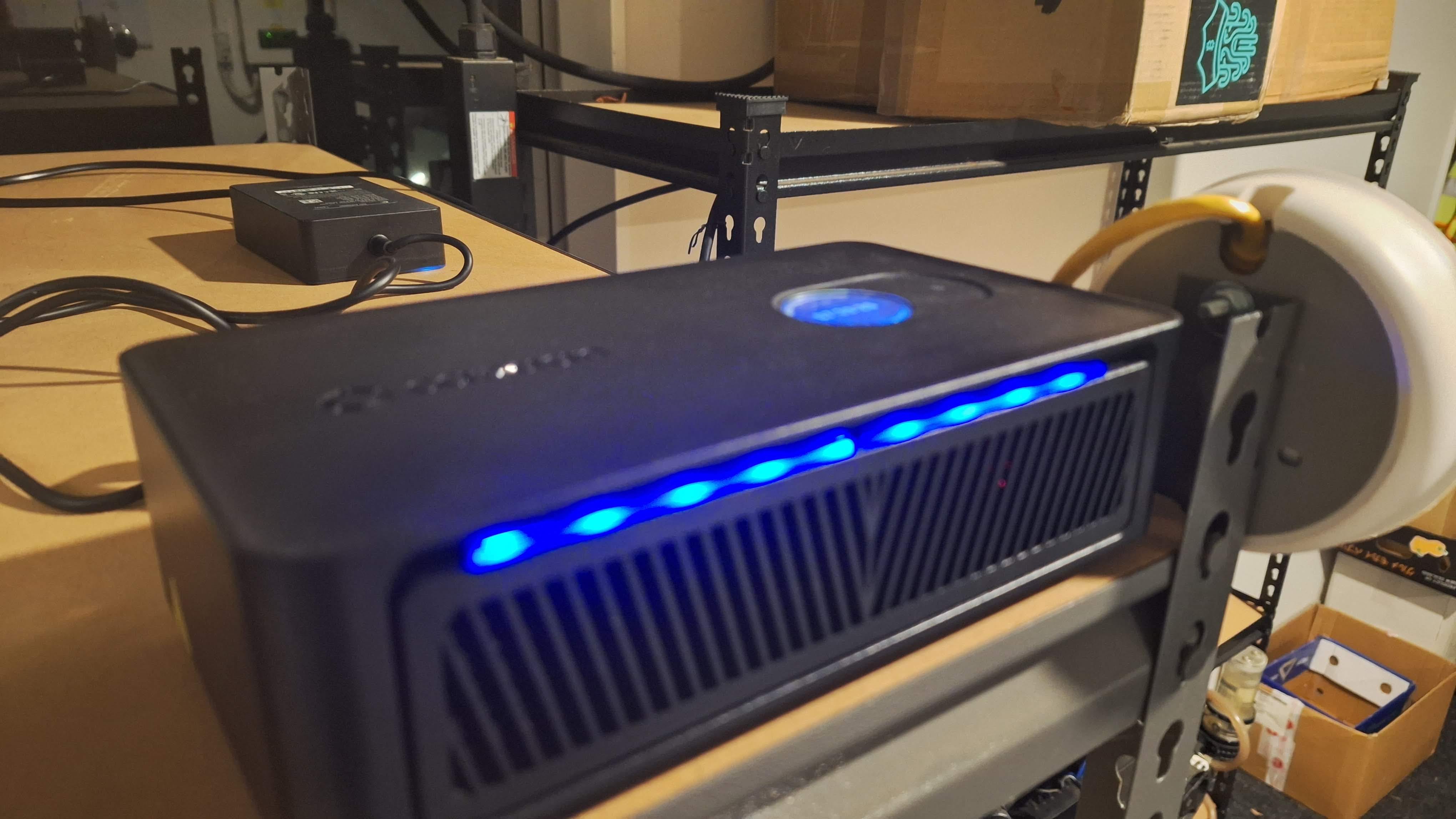
In this article, I will guide you through setting up a Python script and then scheduling it to run on both Linux and Windows.
You can also follow along with this YouTube video:
https://youtu.be/N9U5o9qngmw
Let’s get started!
Installing Python
The first thing you’ll need to do is install Python. If you are using Linux, then it is probably already installed. Otherwise, you can download Python from here:
https://www.python.org/downloads/
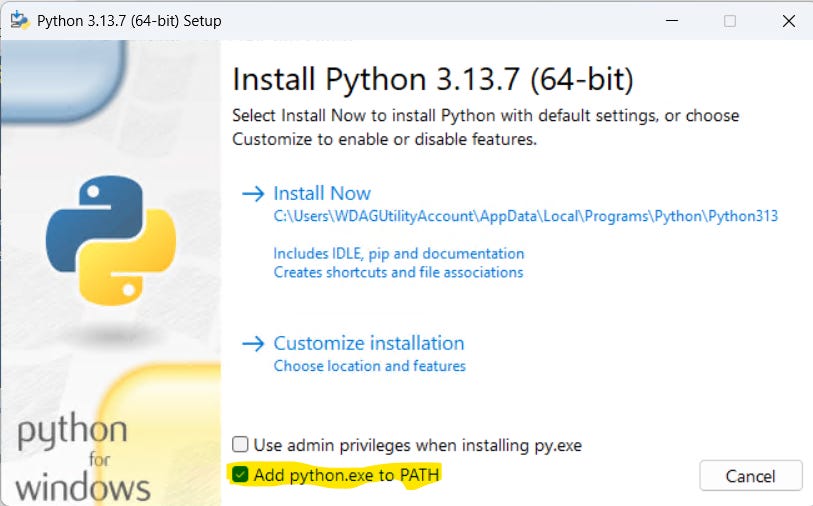
If you are installing Python on Windows, make sure you tick the option to “Add Python.exe” to the PATH. It will make your life easier.
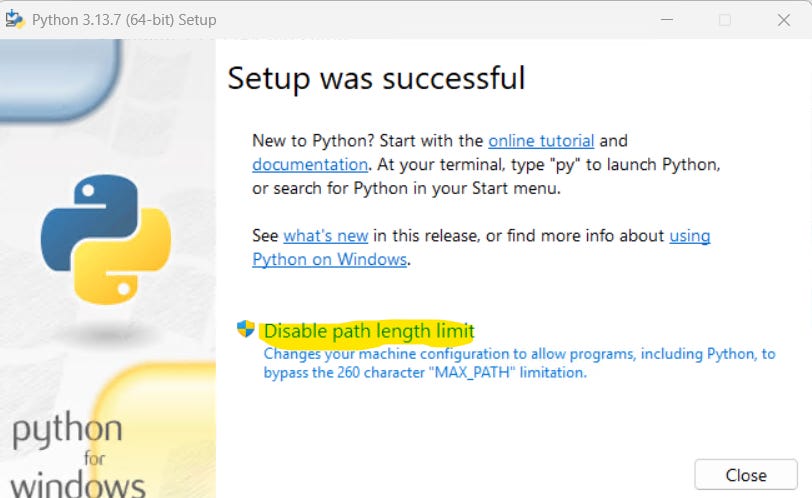
At the end of the installation, select the option to disable the path length limit.
The Code
I’m using Windows Sandbox, which doesn’t come with any text editors, so I am going to use the Python IDLE editor, which you can start from the command line with:
python -m idlelib avalon-control.pyHowever, any text editor will do (vi, notepad.exe, TextEdit, etc). Here is the code to put into a file called “avalon-control.py”:
#!/usr/bin/env python3
#
# This script lets you query and configure settings on Canaan Avalon miners.
#
# The Canaan Avalon API is available here:
# https://www.canaan.io/docs/api/
#
# Example commands are:
# ./avalon-control.py 192.168.0.1 version
# ./avalon-control.py 192.168.0.1 set workmode 2
#
# To get help use -h at different levels. e,g.
# ./avalon-control.py -h
# ./avalon-control.py 192.168.0.1 set -h
#
# The output is in JSON.
#
import sys,socket
import argparse
from ipaddress import ip_address
import json
import time

class AvalonAPI:
    def __init__(self, host, port=4028, timeout=5):
        self.host = str(host)
        self.port = port
        self.timeout = timeout

    def _send_command(self, command, parameter=None):
        if parameter:
            message = f"{command}|{parameter}"
        else:
            message = command

        try:
            with socket.socket(socket.AF_INET, socket.SOCK_STREAM) as s:
                s.settimeout(self.timeout)
                s.connect((self.host, self.port))
                s.sendall(message.encode('utf-8'))

                # Keep looping till we have read in all the data
                response = b''
                while True:
                    chunk = s.recv(4096)
                    if not chunk:
                        break
                    response += chunk
                return response.decode('utf-8', 'ignore')
        except socket.timeout:
            print(f"Connection timeout to {self.host}:{self.port} after {self.timeout} seconds")
            sys.exit(-1)
        except socket.error as e:
            print(f"Socket error: {str(e)}")
            sys.exit(-1)

    def parse_cgminer_response(self,data):
        sections = {}
        seen_sections=[]

        # Remove trailing | if present
        data = data.strip()
        if data.endswith('|'):
            data = data[:-1]

        for part in data.split('|'):
            fields = part.split(',')
            if len(fields) > 0:
                section_name = fields[0].split('=')[0] if '=' in fields[0] else fields[0]
                # Check if they key already exists and if so convert to an array
                appendArray=False
                if section_name in sections:
                    # This is now going to be an array, so we need to append
                    appendArray=True

                    # Convert to an array the first time only
                    if section_name not in seen_sections:
                        sections[section_name]=[sections[section_name]]
                        seen_sections.append(section_name)

                section_data = {}
                for f in fields:
                    if '=' in f:
                        k, v = f.split('=', 1)
                        section_data[k] = v

                # Either add the section to the array for as a dictionary element
                if(appendArray):
                    sections[section_name].append(section_data)
                else:
                    sections[section_name] = section_data
        return sections

    def command(self, command, parameter=None):
        raw_response = self._send_command(command, parameter)
        return self.parse_cgminer_response(raw_response)

    def ascset(self,key,value):
        param = f"0,{key},{value}"
        return self.command('ascset', param)

    # Query Version Information
    def version(self):
        return self.command('version')

    # Query Brief Information
    def summary(self):
        return self.command('summary')

    # Query Device Log
    def estats(self):
        return self.command('estats')

    # Query Mining Pool Configuration Information
    def pools(self):
         return self.command('pools')

    # Set Mining Pool
    # -<poolnum>range 0-2,set which mining pool
    # -<pooladdr>mining pool address
    # -<worker>pool worker
    # -<workerpasswd>pool worker password
    def set_pool(self,poolnum,pooladdr,worker,workerpasswd):
        param = f"admin,root,{poolnum},{pooladdr},{worker},{workerpasswd}"
        return self.command('setpool', param)

    # Set work mode
    # -<mode>range:0~2;Low = '0' , Mid = '1', High = '2'
    def set_workmode(self,level):
        param = f"set,{level}"
        return self.ascset("workmode", param)

    # Set LED
    # -< effect >effect:0=off;1=on;2=flash;3=breath;4=loop
    # -< bright >brightness,range:0-100
    # -< temper >color temperature,range:0-100
    # -< r-g-b >red green blue,range:0-255
    def set_led(self,effect,bright,temper,r,g,b):
        param = f"{effect}-{bright}-{temper}-{r}-{g}-{b}"
        return self.ascset("ledset", param)

    # Set Reboot
    def reboot(self):
        return self.ascset("reboot", "0")

    # Set Standby
    def set_standby(self):
        return self.ascset("softoff",f"1: {int(time.time())+60}")

    # Set Wake-up
    def set_wakeup(self):
         return self.ascset("softon",f"1: {int(time.time())+60}")


def main():
    text="""
    avalon-control.py allows control and set the power level on a Canaan Avalon ASIC miner.
    """

    parser = argparse.ArgumentParser(description = text)
    parser.add_argument("ip",type=ip_address,help="IP Address of Canaan Avalon ASIC")

    subparsers = parser.add_subparsers(dest="command",required=True,help="Command to execute")
    # Simple commands without additional parameters
    for cmd in ["version", "summary", "estats", "pools", "reboot"]:
        subparsers.add_parser(cmd, help=f"Execute {cmd} command")

    # Set subparser
    set_parser = subparsers.add_parser("set", help="Set device configurations")
    set_subparsers = set_parser.add_subparsers(dest="set_command", required=True,help="Set command to execute")

    # set workmode command
    parser_workmode = set_subparsers.add_parser("workmode",help="Set the performance workmode.")
    parser_workmode.add_argument("workmode",type=int,choices=range(0, 3),help="0 equals low performance.  Higher and higher numbers equates to more performance.")

    # set softon command
    set_subparsers.add_parser("standby",help="Put the miner to sleep.");

    # set wakup command
    set_subparsers.add_parser("wakeup",help="Wake the miner backup.");

    # set led command
    parser_led = set_subparsers.add_parser("led", help="Set LED configuration")
    parser_led.add_argument("effect",type=int,choices=range(0, 5),help="LED Effect")
    parser_led.add_argument("bright",type=int,choices=range(0, 101),help="Brightness")
    parser_led.add_argument("temper",type=int,choices=range(0, 101),help="Colour temperature")
    parser_led.add_argument("r",type=int,choices=range(0, 256),help="Red")
    parser_led.add_argument("g",type=int,choices=range(0, 256),help="Green")
    parser_led.add_argument("b",type=int,choices=range(0, 256),help="Blue")

    parser_pool = set_subparsers.add_parser("pool",help="Configure a pool.")
    parser_pool.add_argument("poolnum",type=int,choices=range(0, 3),help="The pool number to update")
    parser_pool.add_argument("pooladdr",help="The stratum address of the pool")
    parser_pool.add_argument("worker",help="The worker Bitcoin address")
    parser_pool.add_argument("workerpasswd",help="The worker password on the pool")

    # Start the command line parser
    args=parser.parse_args()

    # Start the Canaan Avalon API
    api = AvalonAPI(args.ip)

    # Map commands to AvalonAPI methods
    command_map = {
            "version": api.version,
            "summary": api.summary,
            "estats": api.estats,
            "pools": api.pools,
            "reboot": api.reboot,
            "set workmode": lambda: api.set_workmode(args.workmode),
            "set led": lambda: api.set_led(args.effect, args.bright, args.temper, args.r, args.g, args.b),
            "set pool": lambda: api.set_pool(args.poolnum, args.pooladdr, args.worker, args.workerpasswd),
            "set standby": lambda: api.set_standby(),
            "set wakeup": lambda: api.set_wakeup()
    }

    # Execute the appropriate command
    command_key = args.command if args.command != "set" else f"set {args.set_command}"
    if command_key in command_map:
        print(json.dumps(command_map[command_key](),indent=2))
    else:
        print(f"Error: Unknown command {command_key}")


if __name__ == "__main__":
    main()
If you are running Linux, then you can mark the file as executable:
chmod +x avalon-control.pyUsing the script
Let's move on to using the script.
Give the script an initial test run with:
python avalon-control.pyIt should produce output showing the command line parameters.
usage: avalon-control.py [-h] ip {version,summary,estats,pools,reboot,set} ...
avalon-control.py: error: the following arguments are required: ip, command
“ip” is the IP address of your ASIC miner. The commands “version”, “estats”, and “pools” display information (in JSON format) about your ASIC.
When I run the following command on my Canaan Avalon Nano 3s:
python avalon-control.py 192.168.80.177 versionI get the following output.
{
  "STATUS": {
    "STATUS": "S",
    "When": "1756713739",
    "Code": "22",
    "Msg": "CGMiner versions",
    "Description": "cgminer 4.11.1"
  },
  "VERSION": {
    "CGMiner": "4.11.1",
    "API": "3.7",
    "PROD": "Avalon Nano3s",
    "MODEL": "Nano3s",
    "HWTYPE": "N_MM1v1_X1",
    "SWTYPE": "MM319",
    "LVERSION": "25021401_56abae7",
    "BVERSION": "25021401_56abae7",
    "CGVERSION": "25021401_56abae7",
    "DNA": "02010000ac268299",
    "MAC": "e0e1a93f06b9",
    "UPAPI": "2"
  },
  "\u0000": {}
}
Although you can only obtain limited information about the ASIC through the web interface or mobile app, the API provides a wealth of data.
Try some of these commands yourself to see the output.
python avalon-control.py 192.168.80.177 summarypython avalon-control.py 192.168.80.177 estatspython avalon-control.py 192.168.80.177 poolsI think you can guess what the reboot command does. All configuration changes take effect after you apply them, except when you change the pool configuration. Any changes to the pool configuration require an ASIC reboot to take effect.
Changing the ASIC configuration
The next step is changing the ASIC miner configuration.
At almost any point on the CLI, you can use “-h” to get more help. For example, to get help on the “set” commands, type in:
python avalon-control.py 192.168.80.177 set -hAnd you’ll get the output:
usage: avalon-control.py ip set [-h] {workmode,led,pool} ...

positional arguments:
  {workmode,led,pool}  Set command to execute
    workmode           Set the performance workmode.
    led                Set LED configuration
    pool               Configure a pool.

options:
  -h, --help           show this help message and exit
Let's take a closer look at one of these options, “workmode”. This lets you vary the performance/power consumption of the ASIC. Let’s get help on that option.
python avalon-control.py 192.168.80.177 set workmode -hThis produces the following output:
usage: avalon-control.py ip set workmode [-h] {0,1,2}

positional arguments:
  {0,1,2}     0 equals low performance. Higher and higher numbers equates to more performance.

options:
  -h, --help  show this help message and exit
Let’s set the “workmode” to 0 (the lowest performance option). Type in:
python avalon-control.py 192.168.80.177 set workmode 0The output is:
{
  "STATUS": {
    "STATUS": "S",
    "When": "1756714427",
    "Code": "119",
    "Msg": "ASC 0 set OK",
    "Description": "cgminer 4.11.1"
  },
  "\u0000": {}
}
Success! We changed the “workmode”. Let’s change back to maximum performance. On a Canaan Avalon Nano 3s the maximum performance is “2”. Other models can have a different maximum performance number.
python avalon-control.py 192.168.80.177 set workmode 2I get the following output:
{
  "STATUS": {
    "STATUS": "S",
    "When": "1756714586",
    "Code": "119",
    "Msg": "ASC 0 set OK",
    "Description": "cgminer 4.11.1"
  },
  "\u0000": {}
}
I’ll let you experiment with changing the “led” colours and “pool” configuration. Remember that if you change the pool configuration, you have to reboot for the change to take effect.
Using a scheduler
Now that we have a way to change the ASIC miner parameters from the command line, we can combine them with a scheduler to automatically set the settings based on the time of day.
Windows
First, we need to know where your python.exe is located. Use the “where” command to find out.
where pythonOn my machine, I got the following output. This will later be used as the “Program”. Make a note of this.
C:\Users\WDAGUtilityAccount\AppData\Local\Programs\Python\Python313\python.exeWe also need to know the full path of the avalon-control.py script that you previously saved. This will later be used for the “Argument”. Make a note of this as well.
where avalon-control.pyOn my machine, this was:
C:\Users\WDAGUtilityAccount\avalon-control.pyNext, click on the “start” button and type in “Task Scheduler”. Click on “Task Scheduler”. Once it starts, select the “Create Basic Task”.
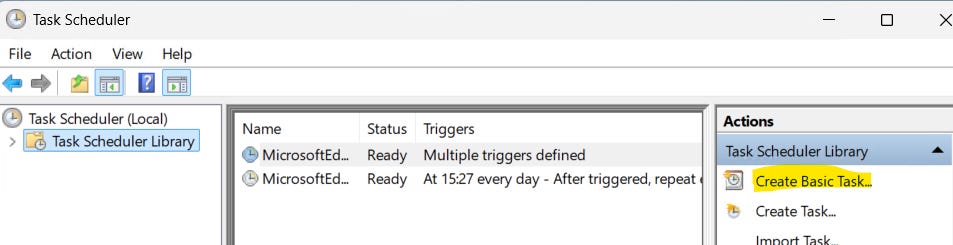
Give the task a name. Click “Next”. Select the frequency at which you want to run the task, and then provide any additional information required for that option.
For the “Action”, select “Start a program”.
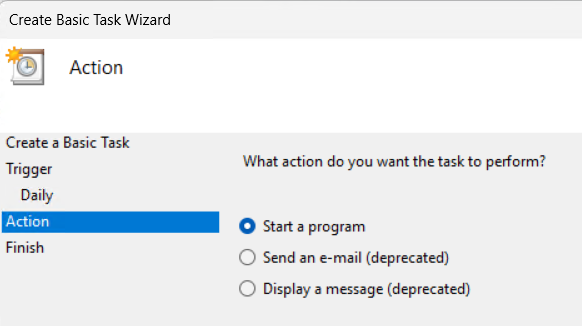
For the program field, put in the path of the python.exe executable path that we recorded earlier. For “Arguments”, enter the full path to the avalon-control.py script (which we noted earlier), along with any arguments you wish to specify (such as workmode).
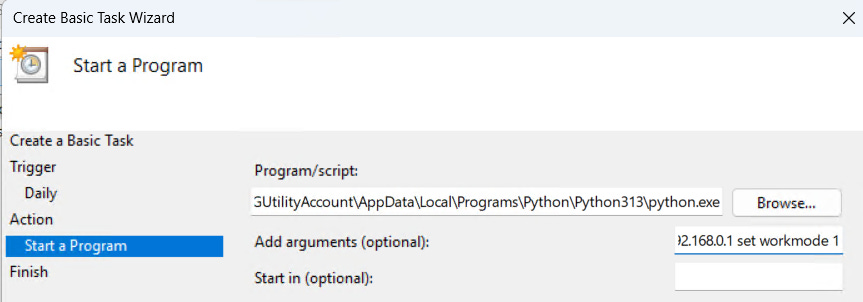
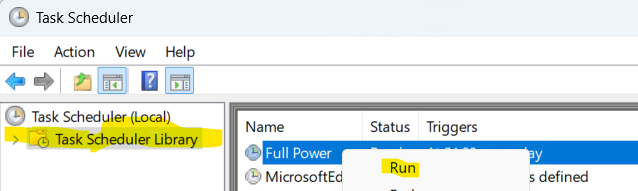
Click next and finish until the new job is saved. You can test out your new job by right-clicking on it and saying “Run”.
Linux
Note down the full path to the script. If you are not sure, you can use the realpath command to find it. Make a note of this.
realpath avalon-control.pyOn my machine this was:
/home/odroid/canaan/avalon-control.pyThen edit your crontab with:
crontab -eAnd create an entry like this (this is all one line). Update the path to the script with your actual path.
0 21 * * * /usr/bin/python /home/odroid/canaan/avalon-control.py 192.168.0.1 set workmode 2Summary
Now you have a framework to automate changing the settings on your Canaan Avalon ASIC miners. You can make them increase performance at the start of the day when the sun is shining, or reduce their performance when electricity is expensive. Whatever your unique situation needs.